
Nordic IPTV is a practical way to organise internet-delivered television around the screen, language and viewing routine that matter to your household. If you are comparing IPTV in Sweden, Norway, Denmark, Finland or Iceland, the useful questions go beyond the number of channels on a package card. You need to know which programmes are available in your location, which player works on your television, how many screens can play at once and whether your connection stays reliable during the evening.
This detailed guide helps you compare a Nordic IPTV subscription, prepare a Smart TV or streaming device, check language options and troubleshoot common playback problems. It also explains how to approach IPTV Nords Standard, Premium and VIP without confusing device compatibility with simultaneous connections. Start with the sections relevant to your home, then use the checklist before choosing a subscription term.
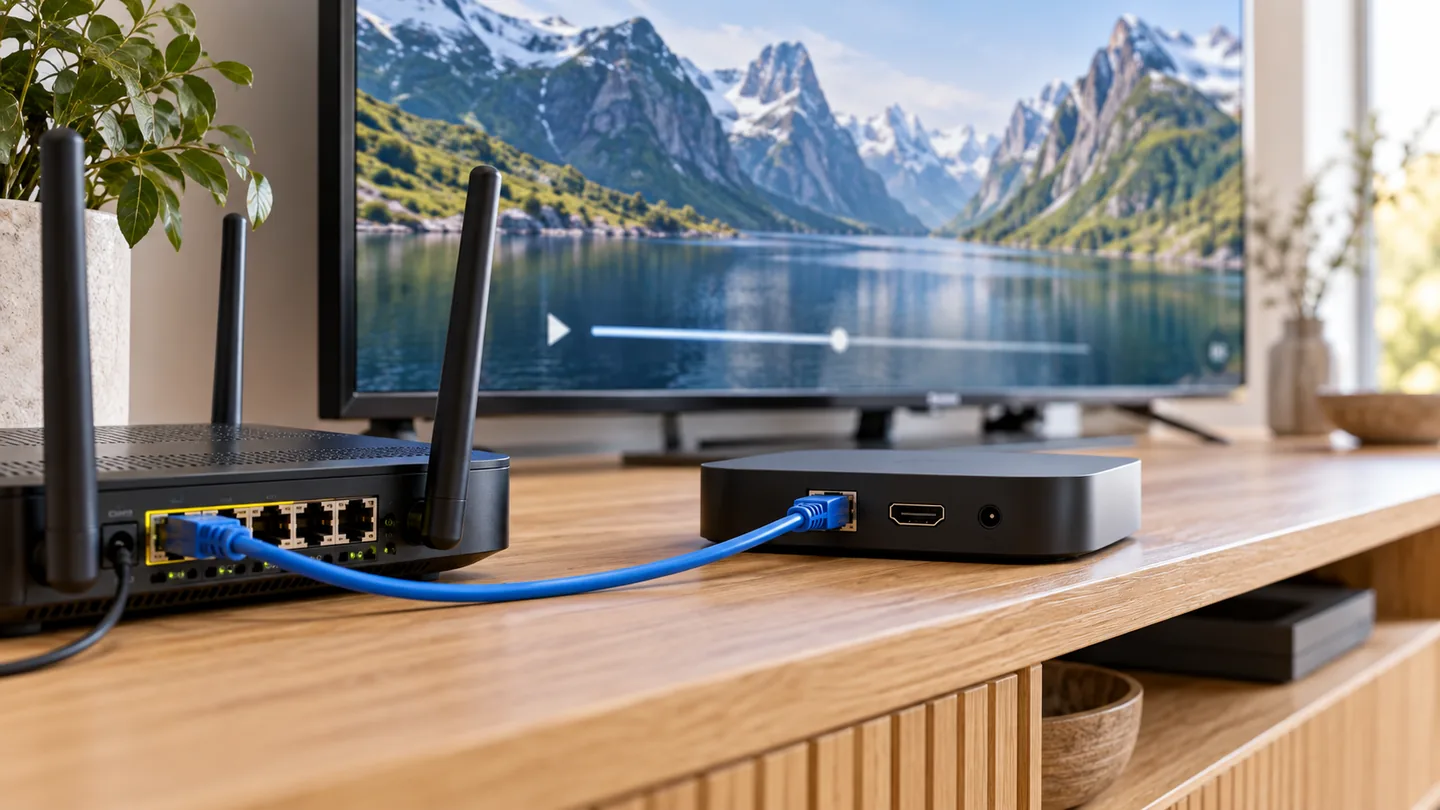
Editorial note: the five original images in this guide are AI-created illustrations of home streaming setups. They are not screenshots of IPTV Nords or evidence that a particular channel, title or event is included.
Nordic IPTV: the quick answer
For a useful Nordic IPTV comparison, confirm five things: your country, your must-watch content, your exact device, the number of simultaneous streams and the total price for the selected term. A large catalogue does not automatically mean that your preferred Swedish, Norwegian, Danish, Finnish or Icelandic programmes are available. Ask about the particular channels, languages and events you intend to watch.
IPTV Nords currently presents Standard, Premium and VIP with one, three, six and twelve-month terms. The displayed packages include one simultaneous connection. Check the live Nordic IPTV pricing page for current totals and package details before ordering. If your home needs two screens playing at once, ask the team about a suitable arrangement rather than assuming that support for several device types includes several streams.
What is Nordic IPTV?
IPTV stands for Internet Protocol Television. In everyday use, it describes television delivered through an internet connection rather than solely through an aerial, cable feed or satellite dish. A viewing setup normally combines a service, a supported application or player, a compatible device and a network connection. Each part affects the result you see on screen.
“Nordic IPTV” is a regional description rather than a separate technical standard. It usually refers to an IPTV offer or guide aimed at people watching in the Nordic countries, with an interest in local languages, regional television and home-device compatibility. Scandinavia commonly refers to Denmark, Norway and Sweden; this guide uses the wider Nordic scope and also includes Finland and Iceland.
It helps to separate the subscription from the player app. A player may provide favourites, an electronic programme guide, subtitle settings or a convenient remote-control interface. Those features do not establish which programmes your subscription includes. Similarly, paying for a player’s premium features does not necessarily purchase television content. Check both costs and ask which login method your service supports.
Internet delivery also does not by itself establish content rights. Before subscribing, request clear information about the provider, the service terms and the availability of the programmes in your country. Choose authorised access, and do not treat a player app or a large channel count as proof of permission to distribute a particular broadcast.
Nordic IPTV by country: language and viewing checks
The most useful country-specific comparison starts with the people in your home. Which languages do they understand? Is live news more important than films? Are subtitles needed for dialogue? Will the television be used every evening or mainly at weekends? Answers to these questions make a subscription comparison more precise than choosing solely from catalogue totals.
IPTV Sweden: Swedish language and everyday television
When comparing IPTV Sweden options, begin with a short list of Swedish-language programmes and channels that you actually use. Someone watching morning news has different priorities from a household planning film evenings or following sport. Give the provider the channel names and categories you want checked, and ask whether they are available in your location and selected package.
For Swedish and international films, inspect the audio and subtitle choices on individual titles. A catalogue described as multilingual may not provide Swedish subtitles on every film or episode. Test how subtitles look from your sofa, including their size, background and timing. If your player lets you save a preferred language, check whether that preference carries across different types of content.
On the practical side, identify your television model and operating system before selecting an app. Two televisions from the same brand can have different app availability because of their year, platform or store region. Use the compatible-device guide as a starting point and ask about your exact model if anything is unclear.
IPTV Norway: Norwegian viewing and the home connection
For IPTV Norway, separate local-language needs from international viewing preferences. Confirm the Norwegian programmes you want, then check whether other household members need English audio or additional subtitles. This makes it easier to judge a package on useful content rather than the size of categories you may never open.
If you are setting up a second television location, such as a different room or a holiday property, test the connection where that screen is located. Performance on a phone next to the router does not describe reception behind the television. Building materials, distance and the placement of wireless equipment can change playback even when the broadband contract remains the same.
Keep location and connection limits in mind when moving between homes. Ask the provider what the account permits before changing the viewing location, and confirm whether a relevant programme remains available there. Do not assume that a subscription intended for one home provides unrestricted playback everywhere.
IPTV Denmark: Danish content and a simple daily routine
When evaluating IPTV Denmark, look at the experience of finding a programme as well as the programme itself. A long list can become inconvenient if everyday channels are difficult to locate. Where the player supports it, create a small Danish favourites group and check the electronic programme guide for the channels you use most.
Before committing to a longer subscription, work through an ordinary evening: open the app with the remote, find a programme, change channel, select subtitles and return to the menu. A player that works technically may still feel awkward for someone who wants a simple television routine. The most suitable interface is the one that the household can use comfortably.
Check the programme-guide clock against a programme with a known local start time. Incorrect device settings or a guide offset can make the schedule look wrong. Fix the basic clock first, then investigate the player’s guide settings only if the mismatch remains.
IPTV Finland: Finnish and Swedish language preferences
For IPTV Finland, ask explicitly about the languages needed in your home, including Finnish and Swedish where relevant. Channel availability, spoken language and subtitles are separate questions. A programme can be listed in a catalogue while lacking the subtitle track a particular viewer needs.
Families watching both local television and international series should check several examples across different categories. Test one live channel, one film and one episode. This gives a more useful picture of the setup than assuming that one successful title proves the entire catalogue has the same language options or playback format.
When using a tablet or phone, pay attention to subtitle size and orientation as well as picture quality. The clearest setting for a large television may not be comfortable on a small screen. Review the app’s controls before expecting younger or older family members to manage them independently.
IPTV Iceland: Icelandic content and realistic availability
If you are comparing IPTV Iceland, make Icelandic-language availability an explicit requirement in your enquiry. Broad references to Nordic content should not replace confirmation of the particular channels and programmes you want. Ask about the current package, your viewing location and the languages available for specific titles.
Check your device’s local time and the programme-guide time before relying on listings. If a programme appears to start at an unexpected hour, compare the app with the broadcaster’s published schedule rather than immediately changing multiple offsets. A precise example helps support identify whether the issue concerns the device clock, a guide feed or a player setting.
For anyone travelling to or from Iceland, verify the account’s travel conditions and the destination’s availability first. A working home setup is not a guarantee of playback on a hotel network or through another country’s connection.
How to choose a Nordic IPTV subscription
A subscription is easiest to compare when you use the same questions for every option. Start with the content that matters, confirm the main device and connection allowance, and only then compare duration and total cost. A longer term can be attractive, but it also means committing before you have seen how the service fits your routine.
Compare Standard, Premium and VIP by your actual needs
IPTV Nords lists three collections: Standard, Premium and VIP. Their displayed catalogue highlights differ, while the current package cards describe one simultaneous connection. Use the live pricing page for current contents and terms. Do not infer that a higher tier adds extra simultaneous screens or guarantees every programme that appears in a general marketing category.
Send a focused enquiry before choosing: “I watch in Finland on a Samsung television, mainly in Finnish and English. Please confirm these three channels, the app for my model, one simultaneous stream and the total for three months.” Replace the country, device and preferences with your own. Specific questions make the answer easier to assess.
Understand the term and total price
One, three, six and twelve months describe the subscription duration. They do not describe the number of devices or a recurring monthly charge. On IPTV Nords, the package cards state that the displayed price is the total for the selected term. Review the selected duration again on the order page so that a previous tab selection does not cause confusion.
If you want to compare the average monthly cost, divide the total by the number of months. For example, a hypothetical twelve-month total of €60 averages €5 per month; that calculation does not establish whether payment is monthly or upfront. Always use the actual order terms rather than treating an average as a billing promise.
Check the player cost and support route
Ask whether the chosen app has a separate activation, licence or subscription charge. Also confirm what setup help includes. Support that can identify the correct login format and explain basic settings may be useful, but it cannot turn an incompatible television into a compatible one or eliminate every issue on your home network.
Keep the plan, duration, total, connection allowance and any separate app charge together in your order notes. Before paying, review the applicable service terms and available payment route. The IPTV Nords contact page is the right place to clarify details that are not stated on the package card.
Nordic IPTV on Smart TV, streaming boxes and mobile devices
Device compatibility depends on the combination of hardware, operating system, player and stream format. A broad device category is a starting point, not a guarantee for every model. Check the app store on the exact device and confirm the service’s supported access method before buying hardware or paying for a player.
Samsung and LG Smart TVs
A television’s built-in player can provide a tidy setup with one remote. Check the model year, operating system and regional app store, then verify the selected player’s login options. If the relevant app is unavailable, ask about a supported external streaming device rather than trying an unrelated installation method intended for another platform.
During a test, use the actual remote to browse categories, open the guide and select subtitles. Check whether the app resumes cleanly after the television has been switched off. These everyday details matter more than a setup that works only once while someone else configures it.
Android TV and Google TV
On Android TV or Google TV, look for a player designed for television controls. A phone-oriented app may be difficult to navigate with a remote even if it opens on a television device. Use official distribution sources, verify the app developer and check compatibility before purchasing paid features.
Keep the device and player updated, but make changes one at a time when diagnosing a problem. If playback was working before an update, note the version and symptoms when asking for support. Do not assume that every setting recommended for a different box applies to your hardware.
Amazon Fire TV
For Fire TV, confirm the exact model and the app’s availability in your device’s store and region. Store listings and platform support can change. Follow the developer’s official instructions for a supported installation route, and avoid download links shared without a clear source.
Check power, available storage and the network connection before blaming the subscription. A player that repeatedly closes has a different problem from a single channel that pauses while the rest of the app remains responsive. Describe which behaviour occurs so that support can narrow the investigation.
Apple TV, iPhone and iPad
Check the chosen player separately for tvOS and iOS or iPadOS. Availability on an iPhone does not necessarily mean that a television version is available on Apple TV. Confirm how the player handles guide information, audio tracks and subtitles on the screen you intend to use.
Casting or screen mirroring is also a separate feature. A phone player may support direct playback without offering a reliable casting route for your television. If casting is essential, test that exact combination before building your viewing routine around it.
Android phones, tablets, Windows and Mac
For mobile and computer viewing, use a player or access method supported by the provider. Check the operating system and avoid entering account details into unfamiliar software. On mobile data, consider your allowance and connection stability; a high-resolution stream can be an unsuitable choice for a limited data plan.
Switching from the television to a phone should follow your subscription’s connection rules. Close playback on the first device before starting another when your plan allows one simultaneous connection. The same login working on several devices does not mean that they may all play together.
A step-by-step Nordic IPTV setup for your home
A careful first setup gives you a useful baseline for future troubleshooting. Begin with one main device and a small set of test content. Once that setup works consistently, you can organise favourites and other supported settings without losing track of what changed.
- Write down the device details. Identify the brand, exact model and operating system. Include the model of an external streaming box if you use one.
- Check the player before purchasing. Confirm that it is available for your device and supports the provider’s access method. Review any separate app cost.
- Prepare the connection. Test the network at the television. Use a wired connection when practical if Wi-Fi there is inconsistent.
- Confirm the package. Review country availability, duration, total price and simultaneous streams on the order details.
- Enter the supplied access details privately. Follow the provider’s instructions for the correct field or login type. Avoid sharing passwords in screenshots.
- Let the initial list and guide load. Follow the player’s normal process. Repeated refreshes can make it harder to tell whether the first load has completed.
- Test different categories. Open a live channel, a film and an episode where included. Check picture, sound, subtitle choices and remote navigation.
- Organise daily viewing. Save a short favourites list, set the correct local time and enable parental controls where supported.
Keep a note of the player, tested device and settings that worked. If you later change the app, network or screen, this baseline makes it easier to compare the new result. For additional guidance, use the IPTV Nords setup guide alongside the player developer’s instructions.
Internet speed, Wi-Fi and 4K picture quality
Your broadband plan’s headline speed is only one part of streaming performance. The connection must deliver data consistently to the device that is playing the video. A fast speed test elsewhere in the home can coexist with weak Wi-Fi near the television, congestion from other devices or a problem affecting an individual stream.
How much speed do you need?
There is no single download-speed threshold that guarantees every IPTV stream. Requirements depend on bitrate, compression, resolution and other network use. As a reference for another streaming platform, YouTube’s system requirements list approximately 5 Mbps of sustained speed for 1080p and 20 Mbps for 4K UHD. These are YouTube figures, not IPTV Nords requirements or a promise of performance.
Ask for guidance for the specific stream format you intend to use, and leave room for other activity on the connection. If someone uploads a large backup while another device streams, a speed test taken when the home was quiet may no longer describe the viewing conditions. Test at the time you normally watch.
Improve the connection before changing everything else
If Wi-Fi is unreliable, check router placement and the path to the television. Avoid hiding networking equipment behind large metal objects or in a crowded cabinet. Compare playback with a wired connection where available. A consistent improvement on Ethernet points towards the local wireless path, although it does not rule out every other cause.
Pause large downloads or backups briefly during a test, then see whether the result changes. This is more informative than buying a faster internet plan immediately. If the device’s network performance remains poor, ask your internet provider about the home connection and equipment with the details of your tests.
What “up to 4K” should mean to your comparison
A 4K television can display lower-resolution video, but it cannot turn that source into genuine additional detail. To watch a stream in its available 4K quality, the source, player, device and connection must support the relevant format. A package described as supporting 4K does not establish that every channel or title is delivered in 4K.
Watch a known test selection and judge reliability as well as sharpness. Full HD that plays consistently may be more useful than a higher-resolution option that your current setup struggles to decode or receive. For sport, smooth motion and stable playback can be as important as the resolution label.
Live TV, Nordic sports, movies and series
A practical subscription comparison reflects your viewing routine across categories. Live television depends on what is available at a particular time. Films and series require the specific titles, versions and languages that you want. Sports viewing adds the need to confirm an event, date and relevant broadcast in your location.

Live television and the electronic programme guide
An electronic programme guide, or EPG, helps you see what is scheduled where the channel and player support it. It is useful for everyday television, but guide data can be incomplete or out of date. If a listing matters, cross-check the expected programme and confirm availability rather than relying only on the text in the guide.
Create favourites for the channels you use regularly. This reduces scrolling and makes a large catalogue easier to manage. Keep language groups separate where the player allows it, and remove duplicate favourites if several versions of a channel cause confusion.
Sports events: confirm coverage before subscribing
For football, ice hockey, tennis or another sport, name the exact competition and date in your enquiry. “Sports included” is less informative than confirmation of the event you intend to watch. Availability can depend on the package, territory and broadcaster, so do not assume that one sports channel means access to every competition.
Open the player before the scheduled start and test on the screen you will use. Check the guide time and avoid major downloads during the event if they affect your connection. Internet-delivered coverage may also be delayed relative to another source, so instant social-media updates can reveal a result before it appears on your screen.
Movies and series: check the exact version
When a particular film matters, confirm the title and available language tracks. For a series, check the season and episodes rather than assuming that a listing includes the whole show. Different versions may have different audio, subtitles or picture quality.
Resume playback and watchlists are player-dependent features. Test them in your chosen app if you expect to move between evenings without losing your place. A provider’s catalogue and a player’s progress controls are different parts of the experience, and both need to fit your routine.
How to investigate Nordic IPTV buffering and playback errors
Buffering is a symptom, not a diagnosis. Possible causes include the local connection, device performance, player settings, account limits or an individual stream. The fastest useful investigation changes one variable at a time and records the result. Reinstalling everything immediately can erase the settings that would help identify the cause.
Only one channel or title has a problem
Try another item in the same category, then a different category. If everything else works, record the affected channel or title and the time. This makes an issue with that particular stream more plausible than a complete failure of your home network, but support still needs to investigate rather than assume a cause.
Do not repeatedly reload the full catalogue to fix one item. Ask the provider whether the stream is currently available and whether there is a known problem. If the issue concerns an episode, include the season and episode number.
All content pauses or loads slowly
Check whether other internet activity is also affected, then compare the television’s Wi-Fi with Ethernet if possible. Pause large transfers briefly and test a lower-resolution option where available. If these changes help, document which one mattered instead of leaving several untracked adjustments in place.
Restart the player and, if needed, the streaming device using their normal controls. If the wider home connection is unstable, investigate that with your internet provider. If other services work normally while all content in the player fails, send the provider the app, device, error message and test results.
The app closes, the screen stays black or sound is missing
Separate a crashing application from a video that plays without picture or sound. A crash may involve storage, an app bug or hardware limits. Missing picture or sound can involve the source format, decoding or the audio path. Check supported updates and the player’s documented settings before changing advanced options.
If the player offers decoder choices, follow its developer’s instructions and change one setting at a time. Keep the previous value so that you can restore it. Avoid applying a long list of settings from a different device; an adjustment that helps one platform may have no benefit on another.
Login or connection-limit errors
Confirm the subscription is active and the access details are being entered in the correct login type. Extra spaces or using a playlist field for a different access method can cause an otherwise valid account to fail. Avoid sharing your complete login details when asking for help.
If your plan allows one simultaneous connection, stop playback on other devices and try again according to the provider’s guidance. Closing a remote-control screen is not always the same as ending playback. Describe whether the problem started after moving between devices so that support can check the relevant account state.
A useful message for support
Send the country, device model, app name and version, affected channel or title, approximate time, connection type and exact non-sensitive error text. Mention whether the issue affects one item or all content and which tests you have already tried. A screenshot can help if you remove account credentials and other private details first.
Connections, family settings and watching away from home
Compatible devices versus simultaneous streams
A service can work on a television, phone and tablet while permitting only one active stream. Compatibility describes where playback can work; the connection allowance describes how many sessions the plan permits at the same time. IPTV Nords currently describes one simultaneous connection on its displayed Standard, Premium and VIP packages.
For a household that wants two different programmes at once, ask about the appropriate account arrangement before ordering. For one person moving from the living room to a tablet, end the first session before starting the second and follow any device or location conditions supplied with the account.
Family viewing and parental controls
Check the controls in the player that your family will use. Where available, protect restricted categories with a PIN, review content ratings and organise age-appropriate favourites. A category name or a thumbnail is not a substitute for deciding whether a particular programme is suitable for a child.
Keep account and payment information under adult control. If the app stores access details, review how another user can reach its settings. A simple, supervised favourites list is often easier for everyday family viewing than giving every viewer unrestricted access to the full interface.
Travel and temporary networks
Before travelling, ask about permitted locations and the programmes available at your destination. A home subscription may have conditions that apply when you use another network or country. Hotel Wi-Fi may also require a sign-in page or impose limits that a streaming device cannot handle easily.
A VPN does not establish content rights, guarantee playback or solve every buffering issue. It adds another network path and may conflict with service conditions. Check the provider’s travel policy and use authorised access rather than assuming that a network tool makes content available everywhere.
Your Nordic IPTV checklist before subscribing
Use this checklist for any package you are considering. It keeps the comparison focused on a working home setup and gives you a record of what the provider has confirmed.
- Country: confirm Sweden, Norway, Denmark, Finland or Iceland as your actual viewing location.
- Content: list the channels, titles and events that matter, and request current availability.
- Languages: check audio and subtitles on specific examples, including local-language needs.
- Device: identify the exact television or streaming-device model and operating system.
- Player: confirm the supported login method, app source and any separate licence cost.
- Connections: establish the number of simultaneous streams and any location conditions.
- Network: test at the main screen during normal evening conditions.
- Quality: confirm the available source quality and whether your setup supports it.
- Price: review the selected term, total, payment timing and applicable service terms.
- Support: keep the contact route and device details ready for a focused enquiry.
If any answer is missing, clarify it before choosing a long term. Compare the current Standard, Premium and VIP packages, read the IPTV Nords FAQ and use the setup guide for your first device. A clear decision now is more useful than troubleshooting an unsuitable purchase later.
Nordic IPTV frequently asked questions
What is the difference between Nordic IPTV and Scandinavian IPTV?
Both are regional descriptions used in viewing guides and subscription comparisons. Scandinavia commonly refers to Denmark, Norway and Sweden. Nordic coverage also includes Finland and Iceland in this guide. Neither label guarantees that every local channel is included; ask about the current selection for your country.
How do I choose the best Nordic IPTV option for my home?
Match confirmed content and language availability with your exact device, preferred player, connection allowance and budget. Review terms and use an authorised service. A package with more catalogue entries is not automatically the most suitable choice if it lacks the programmes or controls you actually need.
Can I use IPTV Nords on a Smart TV?
Start with the compatible-device guide and check your television’s exact model, operating system and available player. A compatible app and supported login method are required. If your television’s app options are limited, ask whether a supported external streaming device is appropriate.
How many simultaneous connections do IPTV Nords plans include?
The current displayed Standard, Premium and VIP package cards describe one simultaneous connection. Confirm the live package details before ordering. Compatibility with a television, phone and tablet does not mean that those devices can all play at once on the same plan.
Is every channel available in 4K?
No. Quality depends on the individual source and the capabilities of the player, device and connection. A 4K-capable television or package description is not proof that every channel or title is a 4K stream. Confirm availability for the content that matters to you.
Do I need to pay separately for an IPTV player?
Some players have separate licence or premium-feature charges. Ask about the chosen app before you pay, and distinguish that charge from the television subscription. Paying for a player does not necessarily provide a content service.
Can I get Swedish, Norwegian, Danish, Finnish or Icelandic subtitles?
Ask about specific titles and language tracks. Subtitle availability varies between programmes, versions and streams, and the player must support the relevant controls. A multilingual catalogue description does not guarantee every Nordic language on every item.
Why does IPTV buffer when my broadband is fast?
The connection at the playback device can be less reliable than the headline broadband speed. Other possible causes include congestion, player or device limits, an individual stream and account conditions. Compare different content and connection types, change one variable at a time and send the results to support.
Does an EPG guarantee accurate schedules?
No. Programme-guide data can be missing or delayed, and clock settings can create apparent timing errors. Check the device time, compare a known programme and contact support with a specific example if the guide remains incorrect.
Can I watch Nordic IPTV while travelling?
Check the service’s location and travel conditions, destination availability and connection requirements before you leave. A working home setup does not guarantee playback on another country’s network. Use authorised access and follow the provider’s terms.
Which IPTV Nords subscription durations can I compare?
The site currently offers one, three, six and twelve-month terms for its displayed collections. Review the selected duration and total on the live pricing and order pages. The total for a term should not be confused with a monthly instalment.
What should I send when asking for setup help?
Provide your country, exact device model, player app and a short description of the question. For an error, include its non-sensitive text, the affected content and the approximate time. Remove passwords, complete access URLs and payment details from screenshots.
Prepare a Nordic IPTV setup that fits your household
A useful Nordic IPTV subscription begins with confirmed viewing choices and a setup you can use comfortably. Whether you watch in Sweden, Norway, Denmark, Finland or Iceland, start with your preferred languages, main screen and actual connection needs. Compare the total for the term, check the app separately and test ordinary viewing controls before making a longer commitment.
Ready to compare? Visit IPTV Nords pricing, check the device guide and follow the setup instructions. If you need a specific channel, title, language or sports event confirmed, contact IPTV Nords with your country and device details before ordering.
Use the pages below to keep the package, device and setup decision connected.