
IPTV Nords practical guide · Updated 28 October 2026
Choosing IPTV picture quality should begin with the programme and the screen, not a long list of format badges. Use this guide to understand the difference between detail, colour and motion before deciding what your home needs.
What determines IPTV picture quality?
IPTV picture quality depends on the original video, the way it is encoded, the player and streaming device, and the television displaying it. A subscription label alone cannot tell you how a particular channel or film will look. The useful question is whether the complete viewing setup supports the version you want to watch.
This guide explains how to compare 4K IPTV with Full HD, what HDR changes, and which device settings deserve attention before you spend money on new hardware. It is written for households in Sweden, Norway, Denmark, Finland and Iceland, but the same checks apply elsewhere. Content availability and supported formats vary by service, title, location and device.
Quick answer: choose the best available source your whole setup can reproduce correctly. A clean Full HD stream can be more enjoyable than a heavily compressed stream labelled 4K. For HDR, the content, player, device and display must work together. Start with the screen you own and confirm the formats of the programmes you actually want.
HD vs Full HD vs 4K IPTV: understand the numbers
Resolution describes the pixel dimensions of a video frame. In common widescreen television formats, HD is 1280 × 720, Full HD is 1920 × 1080, and consumer 4K UHD is 3840 × 2160. Those dimensions describe the image grid, rather than its colour accuracy, motion quality or compression.
A 4K frame has four times as many pixels as a Full HD frame. That creates room for more visible fine detail when the original production, encoding and display preserve it. It does not guarantee that every face, football pitch or night scene will look four times better. Screen size, seating distance and the quality of the underlying footage all influence what you see.
On a smaller bedroom television, Full HD may already look detailed from the normal seating position. On a large living-room screen viewed more closely, a good native 4K source may make textures and distant scenery easier to distinguish. Avoid choosing a package from its largest resolution label alone. Ask about the channels and on-demand titles you will watch regularly.
Native 4K, upscaling and stream labels
Native 4K usually means that the material has genuine 4K detail in its production or delivery chain. Upscaling takes a lower-resolution image and maps it onto a higher-resolution output. Televisions and streaming boxes often perform this automatically so that a Full HD programme fills a 4K screen.
Upscaling can improve presentation, but it cannot reliably recover all the detail that was absent from the source. A box outputting 2160p therefore does not prove that the programme itself is native 4K. Equally, a television’s information banner may report the incoming HDMI signal rather than the original video resolution.
When your IPTV player offers stream information, check the actual video dimensions and codec there. Treat channel names containing “UHD” or “4K” as descriptions to verify, rather than independent measurement. Ask support whether a specific title or channel has a 4K version available for your location and account. This is more useful than asking whether the service supports 4K somewhere in its catalogue.
HDR and SDR: colour and contrast are a separate decision
HDR stands for high dynamic range. It concerns how brightness and colour information are represented and displayed. Resolution concerns pixel dimensions. A video can be Full HD with HDR, or 4K with standard dynamic range. The two features should be checked separately.
When the source and display are suitable, HDR can preserve brighter highlights and a wider range of colour information. The result depends on the television’s capabilities and how the programme was mastered. A television accepting an HDR signal is not a promise that it will reproduce the same impact as every other HDR television.
HDR10, HLG and Dolby Vision are different formats. Compatibility depends on the exact device and app, not just a generic claim that a product is “HDR ready”. Confirm support in the manufacturer documentation for your model. Keep output settings on a suitable automatic mode unless the manufacturer’s guidance says otherwise. Forcing HDR onto ordinary SDR material can change the appearance without turning it into a genuinely HDR-mastered programme.
Live sports: source frame rate and natural motion
For sports, motion can matter as much as fine detail. Follow a fast pass across an ice-hockey rink or a camera pan across a football pitch, and the source frame rate becomes part of the viewing experience. Frame rate is the number of video frames delivered each second; television refresh rate describes how frequently the display updates.
A television with a high refresh rate cannot create original sporting detail that was never present in the stream. Motion processing may create additional intermediate frames, but its appearance is a matter of preference and it can produce artefacts around players or moving objects.
Compare available versions of the same event using the same player and television settings. Look at the ball or puck, outlines around players and moving score graphics. Change only one setting at a time. Do not assume that the sharpest still image produces the most comfortable live match. Confirm the specific event and channel selection before ordering; a hardware feature does not establish access to a competition.
Choose an IPTV device that matches your screen
Start with the exact model number of your television or streaming device. Similar product names can hide different processors, operating systems, video decoders and output capabilities. Your useful checklist includes supported resolution, HDR formats, app availability and the codecs used by the content you want to play.
A built-in Smart TV app may keep the setup simple by avoiding an external HDMI connection. A separate streaming box can be useful when the television’s app selection or processing is limited. Neither option automatically produces a better image in every household. The best fit is the device that supports your chosen player and handles the required formats correctly.
Before buying new equipment, review the IPTV Nords compatible-device guidance and ask about your precise model. If you are deciding how a television fits into the subscription choice, the existing IPTV for Smart TV guide covers that wider decision. Keep device selection separate from promises about the resolution of every channel.
HDMI, ports and output settings for external players
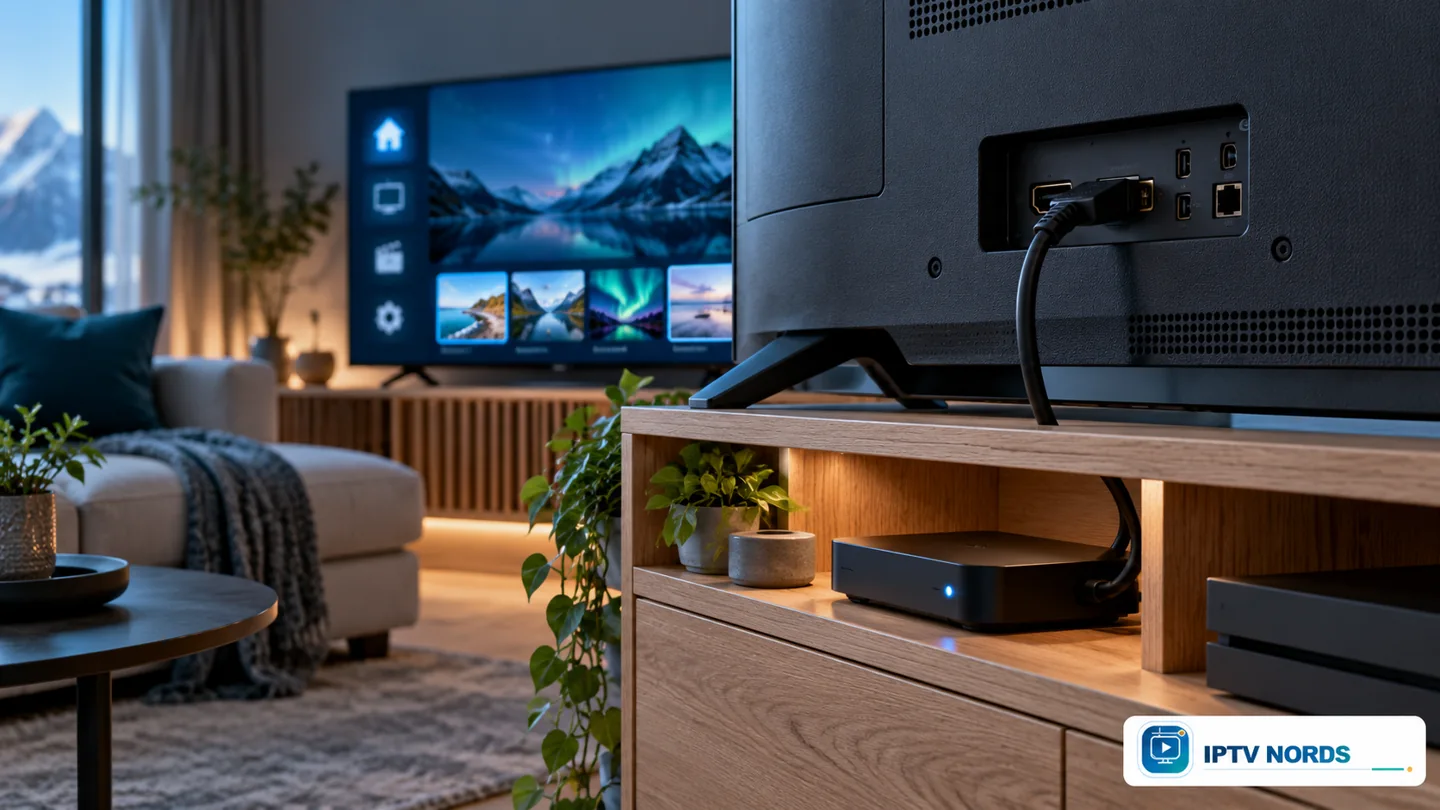
An external player adds a connection between the streaming device and the display. The television port, cable, output settings and any soundbar or receiver in the path must support the signal you want to send. A capable television alone cannot compensate for an incompatible link elsewhere in that chain.
Check your television manual for the appropriate HDMI input and any enhanced signal setting required for the desired format. Manufacturers use different names, and settings can vary between models. Follow the instructions for your actual device instead of copying another person’s menu sequence.
If a picture disappears after changing the output format, return to the previously working setting and review compatibility before trying again. For a new setup, connect the player directly to the television first, establish a correct picture, and then consider additional equipment. Match the cable specification to the intended signal; the most expensive cable is not automatically necessary for your particular resolution and frame rate.
Codecs, compression and player compatibility
A codec is a method for encoding and decoding video. Names such as H.264/AVC and H.265/HEVC describe video formats rather than a subscription tier. A device needs suitable decoding support for the version being delivered, including relevant profiles and bit depth where applicable.
Compression reduces the amount of data needed to carry video. If too much information is discarded, you may see blocks in dark areas, smearing in grass or a loss of detail around moving objects. These artefacts can be present even when the video dimensions say 3840 × 2160. Resolution and bitrate are therefore different clues about the source.
There is no single bitrate that guarantees excellent quality for every programme. Motion, codec, encoder settings and the complexity of the scene all matter. Use visible playback information where available, compare the actual picture, and ask whether another version of the title is offered. Changing television sharpness cannot restore information removed during encoding.
Full HD or 4K on a phone, tablet and second screen?
Portable screens create a different viewing situation from the main television. A smaller display and a different viewing distance can reduce the visible benefit of higher resolution. Device battery use, heat and mobile-data consumption may also affect the practical choice.
Choose a resolution appropriate to the display instead of forcing the highest available version onto every device. For occasional viewing on a phone, a clean lower-resolution version may meet your needs comfortably. For a large tablet watched closely, detail may matter more. HDR availability can also differ between the app and operating-system versions on your devices.
Check simultaneous-connection terms before moving between screens. The displayed IPTV Nords packages currently describe one simultaneous connection; installing a player on several devices does not create extra viewing connections. The IPTV multi-room and multiple-device guide explains how to plan household access. Confirm current terms for your account if the household needs overlapping viewing.
Picture settings for a Nordic living room
The room changes your perception of the screen. Bright daylight, reflected windows and direct lamps can make dark scenes harder to follow. Start by reducing distracting reflections and arranging a comfortable seating position. This can improve everyday viewing without changing the subscription or adding equipment.
Choose a picture mode that looks natural in your room. Names vary by brand, but cinema or filmmaker-oriented modes can provide a useful starting point for films. A brighter mode may be practical during the day. Avoid making multiple extreme changes at once, because it becomes difficult to tell which setting helped.
Excessive sharpness can add outlines around objects, while aggressive noise reduction may soften fine texture. Motion smoothing can change the appearance of films. Treat these as adjustments to evaluate with familiar footage. If a movie’s aspect ratio includes bars, preserving the original shape usually avoids stretching faces or cropping the composition. Use the manufacturer manual when a control is unclear.
How to compare IPTV quality before choosing a plan
Make a short list of your actual viewing priorities: the countries and languages you need, a few favourite channels, the films or series that matter, and the screen you will use most. This gives support something concrete to verify and prevents a generic format claim from becoming your whole purchasing decision.
Ask which of those specific choices are currently available, whether higher-resolution versions exist, and which device and player combinations support them. Where an answer depends on a title, region or version, record that limitation. Do not assume that every item in a large catalogue shares the same picture quality.
Compare subscription duration, total price, renewal terms and connection allowance alongside picture requirements. The current IPTV Nords pricing page lists Standard, Premium and VIP options; review it for current details rather than relying on an old screenshot. For the wider buying process, read the IPTV subscription guide. Confirm that the service and content meet the availability and licensing requirements where you watch.
A practical IPTV picture-quality checklist
Work through the setup in order. First identify your main television and its native resolution. Next choose a specific programme and confirm its available version. Check the player’s video information, then verify device decoding, HDR support and the output path. Finally adjust the television for the room using familiar material.
Keep a note of the exact television model, streaming-device model, player name and version, source title or channel, and the format shown in the player. If you contact IPTV Nords support, these details are more useful than saying only that the image looks wrong. Describe whether the issue concerns colour, detail, motion, aspect ratio or a missing format.
Change one setting at a time and compare the same scene where possible. Stop when the picture is correct and comfortable for everyday viewing. A higher number is worthwhile when it produces a visible benefit on your screen. The goal is a setup that fits your programmes, household and equipment, with clear expectations about what the source actually delivers.
HD, Full HD and 4K at a glance
| Format | Common dimensions | What to check |
|---|---|---|
| HD / 720p | 1280 × 720 | Source quality and suitability for a smaller screen |
| Full HD / 1080p | 1920 × 1080 | Clean detail, motion and source compression |
| 4K UHD / 2160p | 3840 × 2160 | Actual source resolution and complete device compatibility |
| HDR | Separate from resolution | Matching content, player and display format support |
Frequently asked questions about IPTV picture quality
Does a 4K television make every IPTV channel 4K?
No. The television can scale the incoming video to fill its panel, but the source may still be HD or Full HD. Check the original stream information in your player where it is available.
Can Full HD IPTV look better than a 4K stream?
Yes. Strong compression, a poor source or unsuitable settings can reduce the visible quality of a higher-resolution stream. Compare the same programme and pay attention to detail in motion, dark areas and natural textures.
Is HDR the same as 4K?
No. HDR concerns brightness and colour information; 4K describes resolution. Verify each separately for the content and the equipment in your viewing chain.
Do I need a new streaming box for a 4K television?
Only if your existing device or built-in app does not meet your playback needs. Check your exact model, supported codecs, player availability and output formats before buying another device.
Why does the TV report 2160p when the programme looks soft?
The television may be reporting the output signal from an external player. That player can upscale lower-resolution footage to 2160p. The output label does not prove that the original video contains native 4K detail.
Will every title in an IPTV package support HDR?
No. Availability depends on the individual source and version, as well as the service, player and device. Ask about the titles that matter to you rather than assuming catalogue-wide support.
Which details should I send when asking about picture quality?
Send the television and streaming-device model, player version, channel or title, and the source format if shown. Describe whether your concern is detail, colour, motion or image shape. Keep account passwords and private playlist links out of public messages.
Choose the right next step for your screen
For the best IPTV picture quality, match a verified source to a compatible player, device and display. Review supported devices, compare current packages and ask about your exact setup before choosing your term. For country and language considerations, see the Nordic IPTV guide.
Technical references
The format definitions and compatibility principles in this guide can be checked against Google’s video resolution reference, Google’s HDR format guidance and Sony’s 4K and HDR compatibility guidance. These references explain general video concepts; they do not verify the format or availability of any IPTV Nords channel. All 12 illustrations were created for this article and show illustrative interfaces rather than screenshots of a guaranteed catalogue.
Use the pages below to keep the package, device and setup decision connected.